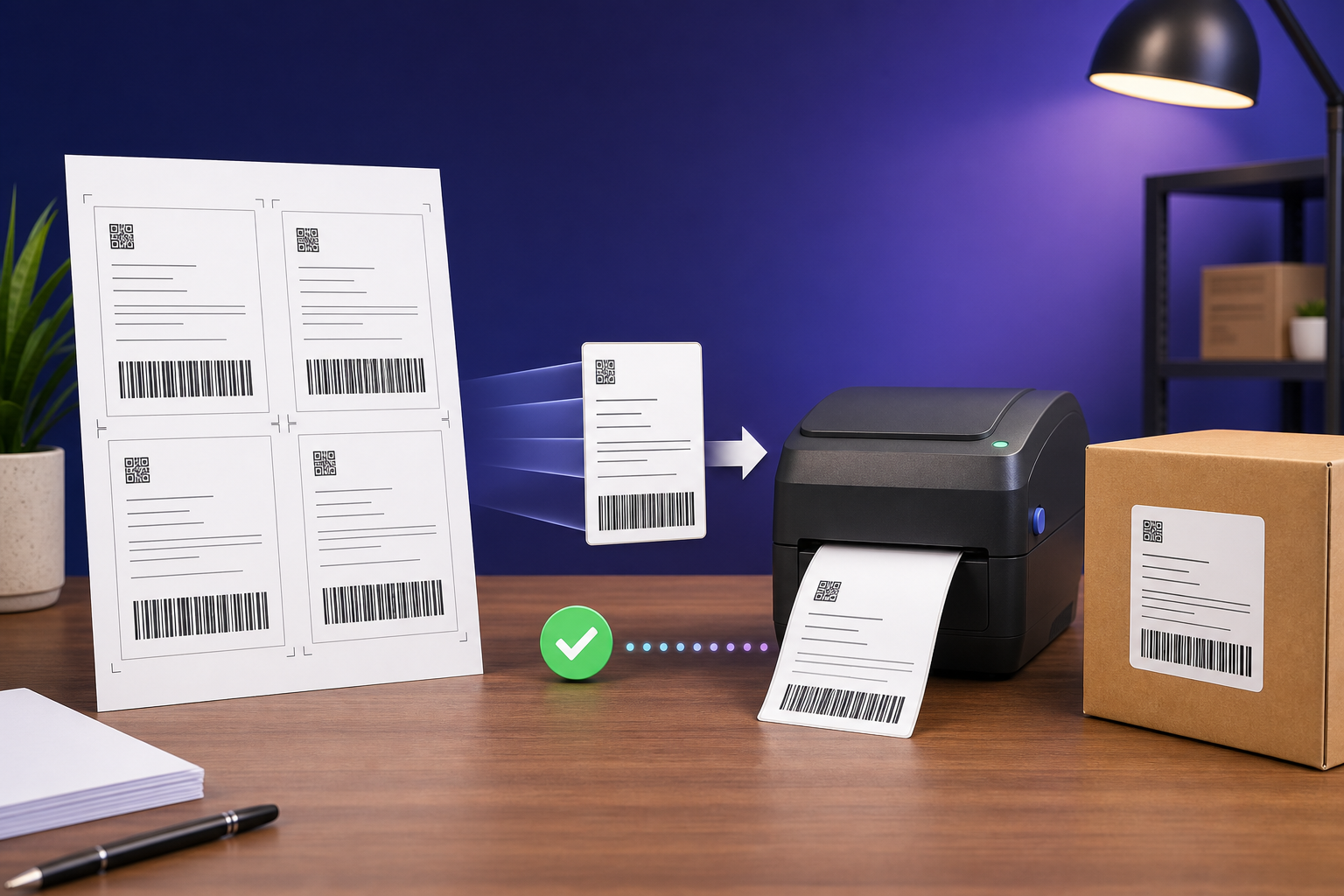
The most common mistake is sending a full A4 page straight to a 4×6 printer. If you choose Fit, the entire A4 page becomes a tiny label. If you choose Actual size, most of the A4 page is cut off. The safe workflow is to isolate one complete shipping label first and only then print that label on the matching roll size.
The short answer
A4 PDF → complete label → 4×6 page → test print
- Keep the original marketplace PDF unchanged.
- Separate each complete label without cutting any required content.
- Export one label per 4×6 page.
- Select the matching 4×6 or 100×150 mm paper in the printer driver.
- Print one test at Actual size/100%, then scan both codes.
First, identify what is inside your A4 PDF
Not every marketplace PDF has the same layout. Before cropping, open the first page and decide which of these you have:
Two or four complete labels arranged on one A4 page.
A shipping label and another required document share the page.
The PDF already contains one label with the correct page dimensions.
Do not assume every visible box is optional. Keep the barcode, QR code, address, order or tracking ID, routing information and any marketplace-required section together. If the invoice must be packed separately, print or store it according to that marketplace’s current instructions.
Step-by-step: convert an A4 label PDF for thermal printing
1. Download and preserve the original PDF
Save the marketplace download as your source. Work on a copy so you can recover the original page if a crop or print setting is wrong.
2. Separate the complete label
For supported marketplace layouts, use the matching Amazon label crop, Flipkart label crop or Meesho label crop tool. The goal is one complete label per output page—not a tight crop around the barcode.
For an unsupported layout, Adobe Acrobat’s Snapshot workflow can print a selected portion, but manual selection is easier to get wrong in a large batch. Zoom in and verify that the selection includes the entire label and its white barcode margins.
3. Confirm the output page orientation
Open the processed PDF and check whether the label is portrait or landscape. Match the printer orientation so the preview fills the roll in the expected direction. Do not rotate only the barcode independently from the rest of the marketplace label.
4. Select the real roll size
In the printer properties, choose the size configured for your media. A nominal 4×6-inch label is about 101.6×152.4 mm; many drivers and rolls use the rounded 100×150 mm name. Use the exact dimensions supplied for your label roll rather than assuming the names are interchangeable.
5. Use Actual size only after conversion
Adobe explains that Fit changes the page to match the selected printable area, while Actual size prints without scaling and crops anything that does not fit. Therefore:
- If your PDF page is already one correct 4×6 label, use Actual size or 100%.
- If the page is still A4, do not use Actual size on 4×6 paper; separate the label first.
- Avoid arbitrary custom percentages. They can make codes too small or stretch the intended layout.
6. Print and scan one test label
Before releasing the batch, check that no content is cut off, the smallest text is readable, the black lines are distinct, and the clear margin around every barcode remains blank. Scan the barcode and QR code used by the shipment workflow. Only then print the remaining pages.
Recommended 4×6 print settings
| Setting | Starting point | Why |
|---|---|---|
| Paper size | Exact roll size: 4×6 or configured 100×150 mm | Prevents unintended scale or clipping. |
| Scale | Actual size / 100% after conversion | Preserves intended label dimensions. |
| Orientation | Match the processed PDF preview | Keeps the label inside the roll width. |
| Margins | Printer minimum; never crop barcode quiet zones | Keeps codes recognisable to scanners. |
| Darkness | Manufacturer default, then adjust one step at a time | Too light fades; too dark can merge narrow bars. |
| Batch size | One test, then the full batch | Stops one bad setting from wasting a roll. |
Important: 4×6 is not a universal rule
Amazon India’s Easy Ship guidance specifies a 4×6 label on sticky paper, but marketplace and fulfilment requirements can differ. Always follow the current label format shown for that shipment in your seller panel. Do not force every PDF into 4×6 simply because your printer uses that roll.
Troubleshooting common results
You printed the A4 page with Fit. Return to the source, separate one complete label, export it as its own page, then print again.
Actual size was used while the PDF page was larger than the roll. Convert the page first or select the correct output page size.
Switch portrait/landscape or enable the printer’s supported rotation. Confirm the preview before printing another test.
Check for faint lines, merged bars, scaling, missing white margins, wrinkles and glare. Clean the printhead and test one small setting change at a time.
The source PDF may mix labels and documents. Separate by page type instead of applying one print setting to the entire file.
What if you only have an A4 inkjet or laser printer?
You do not need a thermal printer for every seller workflow. If the marketplace provides multiple labels on an A4 sheet and allows that output, print on the required paper at the provided layout, keep every code clear, and cut between labels without trimming into their borders. Do not enlarge one label unless the marketplace format and your paper support it.
Prepare your label PDF before opening the print dialog
Choose the marketplace tool that matches the source PDF. Keep the original download, inspect the first processed page, and scan a test before printing the batch.
Research sources
This guide was checked against current first-party documentation. Seller-panel instructions for a specific shipment take priority.
- Adobe Acrobat: adjust page size for printing PDFs—definitions of Fit, Actual size and custom scaling.
- Adobe Acrobat: print a portion of a PDF page—manual Snapshot selection workflow.
- Amazon India: Easy Ship labelling guidance—4×6 sticky labels, readable codes and flat placement.
- GS1: 10 steps to barcode your product—barcode size, contrast and quiet-zone fundamentals.
- GS1 Logistic Label Guideline—logistics barcode sizing, margins and readability.
Frequently asked questions
Can I print an A4 PDF directly on a 4×6 thermal printer?
Only if the PDF page itself contains one complete label sized for that output. If A4 contains several labels or an invoice, separate the complete label first.
Should I choose Fit or Actual size?
After conversion to one correctly sized label page, use Actual size or 100% unless the marketplace or printer specifies otherwise. Actual size on an A4 page sent to 4×6 paper will crop content.
What size is 4×6 in millimetres?
Exactly 101.6×152.4 mm. Many rolls and drivers use the rounded 100×150 mm label. Select the exact dimensions configured for your stock.
Can I crop out the invoice?
Only if the marketplace workflow permits the invoice to be handled separately. Never discard a required document; check the current order and fulfilment instructions.
Editorial note: This is an independent operational guide, not an official Amazon, Flipkart, Meesho, Adobe or GS1 policy page. Requirements can change.